

Most sales professionals treat CSV export as an afterthought. Click a button, download a file, done. But if you've ever imported a lead list into your CRM only to find half the records broken, fields misaligned, or the email column missing entirely, you already know that understanding what is CSV export for leads goes far deeper than a simple file download. This article breaks down how CSV export actually works, what the file structure means for your outreach, where the process typically goes wrong, and how to make it work for bulk lead management and CRM integration across real platforms.
- What CSV export for leads actually means
- How to export leads to CSV correctly
- CSV vs. other formats for lead data
- Practical uses of exported CSV lead files
- My take on what most teams get wrong
- Get export-ready leads from Spherescout
- FAQ
Key Takeaways
| Point | Details |
|---|---|
| CSV is not just a file type | It is a structured data format whose column headers and encoding directly determine whether your CRM import succeeds or fails. |
| Email column is mandatory | Missing or malformed emails are the top cause of import failures when working with exported lead files. |
| Exports run asynchronously | Platforms like HighLevel queue export jobs and notify you when ready, with download links expiring after 30 days. |
| Column selection matters before export | Only visible, enabled columns are included in the export file, so configure your view before initiating the download. |
| Volume determines your tool | For under 50,000 records, most import wizards work fine. Above that, you need a bulk API or data loader solution. |
What CSV export for leads actually means
CSV stands for Comma Separated Values. At its core, a CSV file is a plain text document where each row represents one lead and each column represents a data field, like first name, last name, company, email, phone number, or job title. The columns are separated by commas, and the first row is always the header row that names each field. That's the whole structure. Simple in theory, but the details matter a lot in practice.
When a CRM or lead platform offers CSV export, it is giving you the ability to pull your lead records out of the system in this structured format. The exported file can then be opened in a spreadsheet tool, uploaded into another platform, fed into an email marketing tool, or processed by automation software. CSV is widely used for data migration, CRM integration, and marketing automation workflows because nearly every software tool in the sales and marketing ecosystem can read and write this format.
Here is what a typical CSV file for leads includes:
- Contact identifiers: First name, last name, full name
- Communication fields: Email address, phone number
- Company data: Business name, industry, website, address
- Geographic fields: City, state, ZIP code, country
- CRM metadata: Lead status, lead source, owner, date created
- Custom fields: Any additional fields your team has configured in the platform
One thing that catches people off guard: only visible columns are included in your export. If you haven't enabled a custom field or toggled on a column in your contacts view before exporting, that data simply won't appear in the file. Always configure your column view first.
Pro Tip: Before you export, open your contacts view and confirm every field you need is visible and checked. Re-exporting because you forgot to enable the "Company" column wastes time and, on large datasets, system resources.
Many platforms now handle CSV exports asynchronously. Rather than making you wait while the system generates a file in real time, the export job gets queued and processed in the background. HighLevel's CSV exports work exactly this way: the job runs in parallel with other processes, and you receive a push notification when the file is ready. This approach improves scalability and prevents browser timeouts on large contact lists.
How to export leads to CSV correctly
The actual CSV leads export process varies by platform, but the core steps follow a predictable pattern. Getting this right from the start saves you from debugging broken imports later.
1. Filter your leads. Before you export anything, narrow down the contact list to the segment you actually need. Use filters like lead status, geography, industry, date added, or lead source. Exporting your entire database when you only need a specific region or segment creates unnecessary noise in your data.
2. Configure your column view. Select exactly which data fields you want in the export. Remember: the file will only contain what you can see on screen. Enable every relevant column, including any custom fields your team uses.
3. Initiate the export. Most platforms have an "Export" or "Export to CSV" button in the contacts or leads section. On some platforms, this is restricted to Admin roles only, so check your permissions if the option is grayed out.
4. Wait for the file to process. For large lists, the export job runs asynchronously, queued alongside other jobs. You will get a notification when it's ready. Do not navigate away expecting the file to download instantly on large exports.
5. Download within the expiration window. Download links don't last forever. On HighLevel, for example, your download link expires after 30 days. Download and store the file promptly.
6. Validate the file before using it. Open the CSV in a spreadsheet tool. Check that the header row is in row one, all email addresses are present and properly formatted, and there are no stray characters or encoding issues.
7. Save with UTF-8 encoding. When re-saving or editing, use UTF-8 encoding. This prevents character corruption when the file is imported into another system, especially if your lead data includes names with accented characters or non-English text.
Pro Tip: If you are preparing a CSV for import into an email outreach tool, column mapping and validation will make or break your import. The Email column is almost always mandatory, and even one missing or malformed email can trigger an error notification that halts the entire upload.
A note on volume: for imports under 50,000 records, most CRM import wizards handle the job fine. If you're working with larger datasets, that same source recommends switching to a bulk API or data loader tool that supports asynchronous job monitoring at scale.

CSV vs. other formats for lead data
Why do sales and marketing teams consistently reach for CSV when exporting lead data? The answer becomes obvious when you put it next to the alternatives.
| Format | Bulk processing | CRM import support | Automation-friendly | Human readable |
|---|---|---|---|---|
| CSV | ✅ Excellent | ✅ Universal | ✅ Yes | ✅ Yes |
| XLSX (Excel) | ⚠️ Good | ⚠️ Partial | ⚠️ Requires conversion | ✅ Yes |
| ❌ Poor | ❌ Not supported | ❌ No | ✅ Yes | |
| JSON | ✅ Excellent | ⚠️ Developer-dependent | ✅ Yes | ❌ Not easily |
| XML | ✅ Good | ⚠️ System-dependent | ✅ Yes | ❌ No |
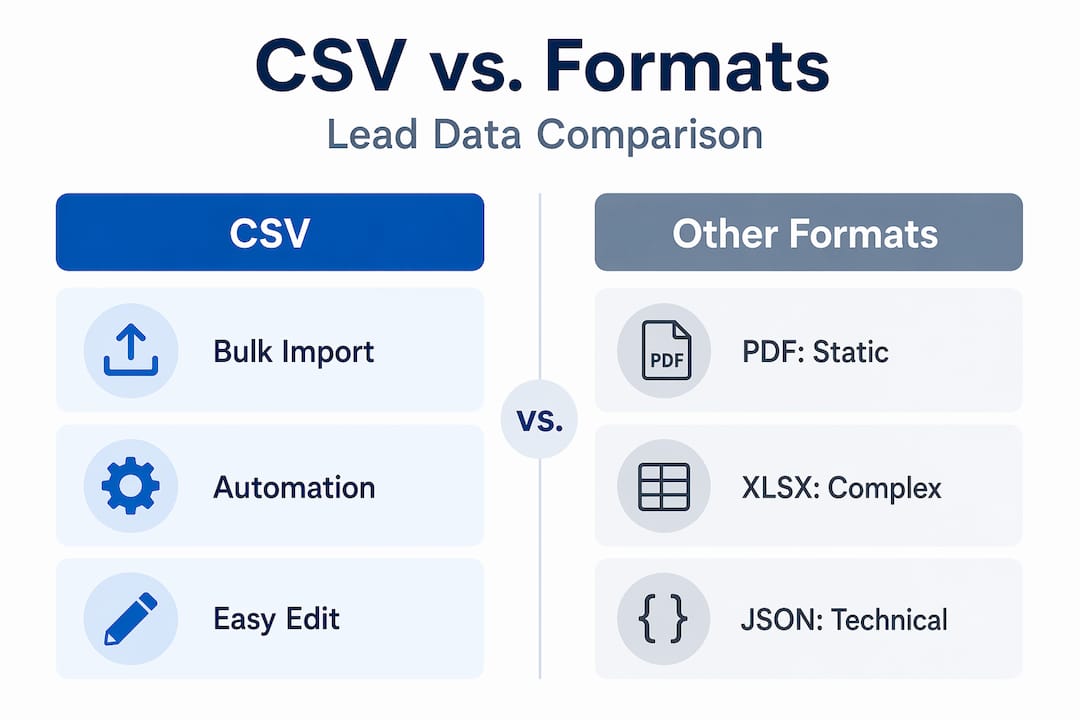
PDF exports might look polished, but they are completely useless for data integration. You cannot import a PDF into a CRM or run it through an automation workflow. XLSX files are more practical but often require conversion steps, and some tools reject them outright. JSON and XML work well for technical integrations but require developer involvement.
CSV wins because it is compatible with most systems and requires no transformation to move lead data between tools. It is the closest thing the industry has to a universal language for structured contact data.
That said, CSV has its limitations. It does not support multiple sheets, complex data types, or relationships between records. If you need to export leads with associated deal history, notes, or activity logs, a CSV won't carry that context. For reporting purposes, XLSX or a BI tool export makes more sense. For bulk lead transfer and outreach, CSV is the right call.
Practical uses of exported CSV lead files
This is where understanding the CSV format pays off in your day to day work as a sales or marketing professional.
Migrating leads between CRMs is one of the most common use cases. When a team switches platforms or consolidates databases, CSV is the standard transfer method. The export comes out of the old system, gets cleaned and mapped to the new system's field structure, then imported in bulk. Matching column mapping is critical here. A field labeled "Company Name" in one CRM might need to map to "Account" in another, and mismatches cause silent data loss.
Segmenting leads for targeted campaigns is another high value application. You export a filtered list, maybe all prospects in a specific industry and city, and feed that directly into your email marketing platform or outreach sequencer. This is how you go from a broad database to a precisely targeted campaign list without manual copy and paste.
Here is how exported CSV lead data typically gets used across a sales and marketing workflow:
- Email outreach tools: Upload directly for automated sequences, using mapped fields like first name for personalization
- LinkedIn campaigns: Match against LinkedIn's contact upload feature for matched audience targeting
- CRM imports: Bulk update or add records across your sales pipeline
- Data enrichment: Send the file to an enrichment tool to fill in missing fields before outreach
- Team collaboration: Share segmented lead lists across departments without needing platform access
- Backup and audit: Maintain offline snapshots of your database for compliance or historical reporting
Pro Tip: Before uploading any CSV to an outreach tool, run it through a quick validation step. Check for duplicate emails, blank required fields, and any special characters in the name columns. CSV upload failures most commonly stem from improper column mapping and missing mandatory fields, not from export mechanics.
For teams working with enterprise CRMs, scale matters. The Salesforce Data Import Wizard caps at 50,000 records per import. Beyond that, you need Data Loader with Bulk API, which supports up to five million records and provides asynchronous job monitoring. Plan your export batches accordingly if you are managing a large lead database.
Here is a quick reference for common lead data fields and their typical CSV column headers:
| Lead data | Typical CSV column header |
|---|---|
| Email address | Email or email_address |
| First name | First Name or first_name |
| Company name | Company or account_name |
| Phone number | Phone or phone_number |
| Geographic location | City, State, Zip |
Understanding best practices for B2B data export can help you build a repeatable process that saves hours across your team.
My take on what most teams get wrong
I've seen sales teams lose days of work because nobody thought carefully about the CSV before they exported it. The file looked fine in Excel. The import failed anyway. Why? Because the email column was labeled "Email Address" in the CRM but the outreach tool expected "Email," and the system couldn't map it automatically.
In my experience, the biggest gap isn't technical knowledge about CSV format. Most people understand the concept. The gap is in preparation. Teams rush to export and import without checking encoding, without validating emails, without confirming column names match the destination system. Then they spend hours troubleshooting what is actually a five minute problem if you catch it upfront.
One thing I've found particularly useful: always export a small test batch of ten to twenty records first. Run it through the complete import process in your destination tool. If it works cleanly, scale up. If something breaks, you catch it with a small file that's easy to inspect, not a 10,000 row export where finding the error is like looking for a typo in a novel.
I also want to flag something that most articles skip: error reporting in bulk import tools is genuinely useful. Platforms like Salesforce Data Loader generate an error CSV that tells you exactly which records failed and why, with specific error codes like FIELD_INTEGRITY_EXCEPTION or MALFORMED_ID. Reading that error file, not ignoring it, is how you fix imports in minutes instead of hours.
My recommendation for any sales or marketing team: treat your CSV export as a deliverable with quality standards, not just a download. Define your required columns, validate before uploading, and document your column mapping for every tool in your stack. It takes thirty minutes to set up once and saves hours every time you run a campaign.
— Raphael
Get export-ready leads from Spherescout
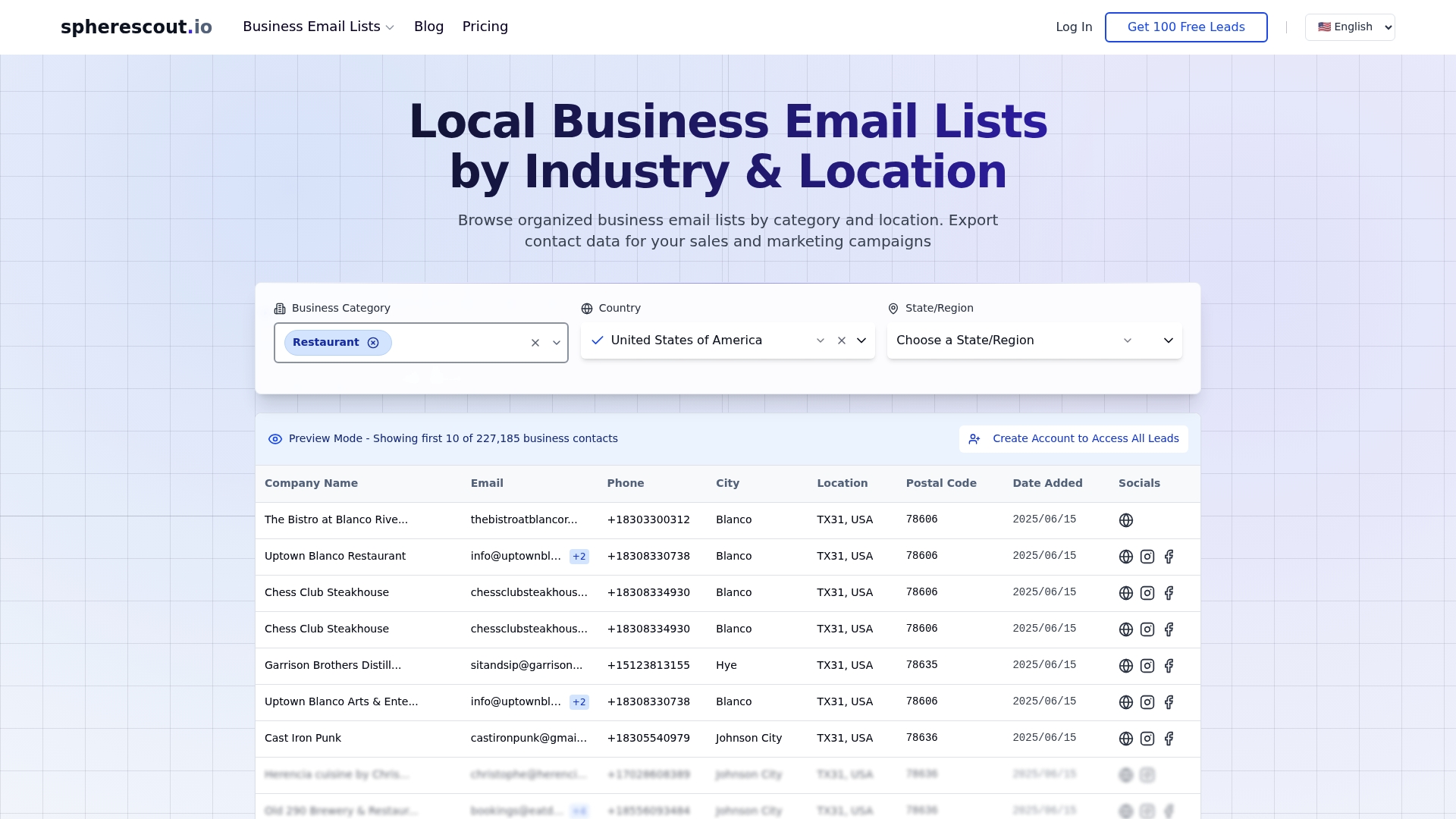
If the export process is the part you've got figured out, the next challenge is making sure the data you're exporting is actually worth sending. Spherescout gives B2B sales and marketing teams access to over 30 million structured business contacts, organized by industry, geography, and company type. Every list is built for the kind of targeted outreach that benefits from a clean CSV export workflow. You can filter by city, postal code, or industry category, then download a ready to use CSV file that maps directly into your CRM or outreach tool. Explore USA business email lists by industry, or browse lead generation options matched to your buyer type.
FAQ
What is CSV export for leads?
CSV export for leads is the process of pulling contact records out of a CRM or lead platform into a Comma Separated Values file. Each row contains one lead's data, organized into labeled columns like email, name, company, and phone number, making the file compatible with most sales and marketing tools.
Why use CSV instead of other formats for lead data?
CSV is compatible with most systems and works directly with CRMs, email marketing platforms, and automation tools without requiring conversion. Formats like PDF cannot be imported into these systems, while XLSX files often require extra steps.
What causes CSV lead imports to fail?
Most import failures come from missing or malformed email addresses, incorrect column headers that don't match the destination system's field names, and improper file encoding. Validating your file before uploading prevents the majority of these errors.
How many leads can you import from a CSV at once?
It depends on your platform. The Salesforce Data Import Wizard handles up to 50,000 records. For larger volumes, up to five million records, Data Loader with Bulk API is the recommended approach, offering asynchronous processing and detailed error reporting.
How long are CSV export download links available?
This varies by platform. On HighLevel, CSV export download links expire after 30 days. Download and store your file promptly after the export job completes to avoid losing access.