

If your team is still copying and pasting contact details from a spreadsheet into your CRM one row at a time, you are burning hours every week on work that should take minutes. Manual data entry is not just slow — it is a reliable source of misspelled emails, duplicate records, and missed contacts that quietly kill your outreach results. CSV exports exist precisely to solve this problem, and yet a surprising number of small and medium-sized sales and marketing teams have never used them properly. This article walks you through what CSV exports actually do, how to use them without making costly mistakes, and what best practices look like when your goal is scalable, targeted outreach.
- How CSV exports streamline outreach workflows
- Common pitfalls and how to avoid CSV export errors
- Best practices for sales and marketing CSV exports
- The uncomfortable truth most teams miss about CSV exports
- Unlock scalable outreach with SphereScout's CSV-ready solutions
- Frequently asked questions
Key Takeaways
| Point | Details |
|---|---|
| CSV is universal | CSV exports work in nearly every CRM and outreach tool, making them ideal for bulk data transfers. |
| Avoid manual errors | Automating data moves with CSV means fewer manual mistakes and faster campaign execution. |
| Validate before import | Always run a small CSV import test to catch errors before launching outreach efforts. |
| Only export essential fields | Segment and select only the fields needed to ensure compliance and efficient targeting. |
| Edge cases matter | Planning for encoding, quoting, and schema mismatches prevents costly data failures. |
What is a CSV export and why does it matter?
CSV stands for comma-separated values. It sounds technical, but the concept is simple: a CSV file is just a plain-text document where each row represents one record (like a contact), and each column is separated by a comma. That's it. No proprietary format, no special software required. You can open a CSV in Excel, Google Sheets, a text editor, or feed it directly into your CRM.
Here is why that simplicity matters for outreach teams:
- Universal compatibility: Virtually every CRM, email marketing platform, and sales tool on the market accepts CSV imports. HubSpot, Salesforce, Mailchimp, Pipedrive — all of them.
- Lightweight and fast: CSV files are small. You can move thousands of contacts in a file that takes seconds to upload.
- No formatting overhead: Unlike Excel files, CSVs carry no hidden formatting, formulas, or macros that can break during transfer.
- Easy to review: Because it's plain text, you can spot obvious errors before you ever import anything.
Adobe notes that CSV is plain-text and widely used for storing, sharing, importing, and exporting data across a wide range of software. That ubiquity is exactly why CSV became the default format for contact data movement in B2B sales.
"CSV exports are used to move targeted lead and contact data into CRMs and outreach tools with minimal friction because CSV is a plain-text, widely supported interchange format."
Think about what that means in practice. You build a targeted list of 2,000 prospects filtered by industry and city. Instead of entering each one manually, you export the list as a CSV and import the entire batch in one step. The CRM role in B2B sales is to centralize your pipeline, and CSV is the fastest on-ramp to get new data in.
Learning the mechanics of efficiently exporting contact lists is one of the highest-leverage skills your team can develop. It is not glamorous, but it pays off every single campaign.
As the foundation of data portability, CSV powers much of today's outreach infrastructure. Let's see how teams actually leverage CSV exports.
How CSV exports streamline outreach workflows
The real power of CSV exports shows up when you look at how they fit into a repeatable outreach workflow. Without CSV, every campaign starts with manual grunt work. With CSV, your team can go from a raw contact database to an active outreach sequence in a fraction of the time.
Here is the basic CSV export sequence for SMBs:
1. Segment your data. Decide who you are targeting. Filter by industry, geography, company size, or job title before you export anything. Exporting everything and sorting it later wastes time.
2. Validate key fields. Before exporting, check that emails are formatted correctly, phone numbers are complete, and company names are consistent. Garbage in, garbage out.
3. Export to CSV. Pull the filtered, validated records into a CSV file. Keep the column headers clean and descriptive (FirstName, Email, Phone, CompanyName).
4. Run a test import. Upload a small batch (50 to 100 records) into your CRM or outreach tool. Verify that fields map correctly and no data is lost or scrambled.
5. Full upload and campaign launch. Once the test passes, import the full list and trigger your outreach sequence.
HubSpot confirms that bulk contact import flows in established CRMs rely on CSV files, and teams use them to add or update contacts directly from spreadsheets. This is not a workaround — it's the intended workflow.
CSV exports also support bulk updates. If you need to refresh phone numbers or add a new field across 3,000 existing records, you can do that with a single CSV upload rather than editing records one by one. Combined with smart B2B email marketing strategies, a clean CSV import sets the stage for personalized, high-volume campaigns.
The efficiency gains also reduce the risk of human error. When someone manually types in 500 email addresses, they will make typos. When you export those same emails from a validated database and import the file, the data stays intact. Pair that with solid cold emailing best practices and your deliverability stays high.
Optimizing customer workflows in B2B sales consistently comes back to reducing manual touchpoints. CSV exports are one of the most direct ways to do that.

Pro Tip: Always run a small import test before your full upload. Map five to ten records and verify every field lands in the right column. This two-minute check catches mismatches that would otherwise corrupt hundreds of records.
Now that CSV exports power rapid data handling, there are critical nuances to making them work reliably and avoiding costly mistakes.
Common pitfalls and how to avoid CSV export errors
Here is something most teams learn the hard way: CSV is simple in concept but surprisingly easy to break in practice. A misplaced comma, an encoding mismatch, or a schema difference between your export source and your CRM can corrupt an entire import. Let's look at the most common problems and how to avoid them.
| Common mistake | What goes wrong | Correct practice |
|---|---|---|
| Unquoted fields with commas | CSV reader splits one field into multiple columns | Wrap all text fields in double quotes |
| Wrong delimiter (semicolons vs. commas) | File fails to parse or all data lands in one column | Confirm delimiter matches target system's expectation |
| Encoding mismatch (UTF-8 vs. ANSI) | Special characters (accents, symbols) appear as garbled text | Save all CSVs in UTF-8 encoding |
| Schema mismatch | Fields import into wrong columns | Match column headers exactly to CRM field names |
| Embedded newlines in fields | Rows split unexpectedly mid-record | Strip or replace newlines inside field values before export |
According to CSV best practices, edge cases during CSV export and import are a primary reason these workflows fail. Quoting, delimiters, encoding, and field format mismatches are not rare edge cases — they happen regularly, especially when data comes from multiple sources.
Here are the specific edge cases every outreach team should plan for:
- Commas inside field values. A company name like "Smith, Jones & Partners" will break your CSV unless that field is wrapped in quotes.
- Embedded quotes. If a field contains a quotation mark, it must be escaped properly (usually doubled: "").
- Newlines inside fields. Some CRM notes or address fields contain line breaks. These need to be stripped before export.
- Encoding differences. If your database uses ANSI encoding and your CRM expects UTF-8, any name with an accent or special character will import as garbage.
- Schema mismatches. Your export file has a column called "Email_Address" but your CRM expects "Email." The import maps it incorrectly.
The good news is that B2B email verification tools can catch many of these problems before they reach your CRM. Running your list through a verification step adds a layer of protection that pure CSV formatting checks cannot provide.
Pro Tip: Validate every exported CSV against your target system's import template before running any campaign. Download the system's sample CSV or field map and compare it to your export. Five minutes of checking here prevents hours of cleanup later.
Let's pivot from prevention to practical frameworks. Here is the expert-approved methodology for SMB teams exporting CSVs for outreach.
Best practices for sales and marketing CSV exports
Knowing what can go wrong is half the battle. The other half is building a repeatable process that makes errors unlikely from the start. Here is the framework we recommend for SMB outreach teams.
The five-step export framework:
1. Segment first. Never export your entire contact database. Define your target audience clearly (industry, location, role, company size) and filter before you export. Smaller, focused lists perform better and are easier to validate.
2. Validate email and phone fields. Use a validation tool or at minimum run a format check. An email without an "@" symbol or a phone number with letters in it will not help anyone. Check out resources on verifying contact information for deeper guidance here.
3. Select only necessary fields. Do not export every available column. Export only the fields your campaign actually needs. This improves clarity, reduces file size, and keeps you aligned with data minimization principles.
4. Run a test import. Upload 50 to 100 records into your CRM or email tool. Confirm field mapping, check for encoding issues, and verify that contact records look correct before committing to the full upload.
5. Full upload and document your process. Once the test passes, upload the complete list. Then write down your column mapping and validation steps so the next person on your team can replicate it without guessing.
Following customer data management steps like these creates consistency across campaigns and reduces the chance of one bad import derailing a quarter's outreach.
Typical fields in an SMB outreach CSV:
| Field name | Purpose | Required? |
|---|---|---|
| FirstName | Personalization in email subject/body | Yes |
| LastName | Full name for formal outreach | Yes |
| Primary contact channel | Yes | |
| Phone | Follow-up calls | Recommended |
| CompanyName | Account-based targeting | Yes |
| Industry | Segmentation and relevance | Yes |
| City | Geographic targeting | Optional |
| PostalCode | Hyper-local campaigns | Optional |
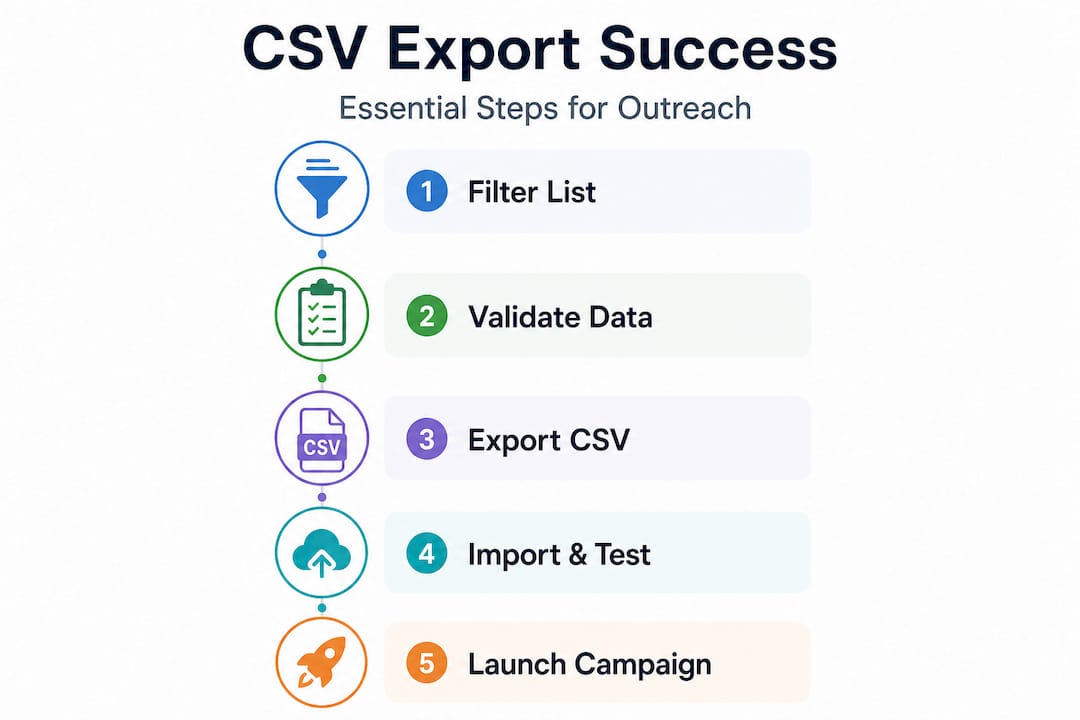
HubSpot's guidance on bulk contact import reinforces this: segment first, validate email and phone, choose only required fields, then run a small test import before full upload to avoid costly rework.
The temptation to export everything and sort it later is real, especially when you are under deadline pressure. Resist it. A focused 500-record list with clean data will outperform a bloated 5,000-record list full of errors every single time. Learning the nuances of exporting contact lists correctly is what separates teams that scale from teams that keep redoing the same work.
With best practices in mind, consider the broader impact and hidden advantages CSV exports deliver to outreach teams.
The uncomfortable truth most teams miss about CSV exports
Here is what we see consistently when working with SMB sales and marketing teams: they treat CSV exports as an afterthought. They rush the export, skip validation, and dump the file directly into their CRM. Then they wonder why their email campaigns are bouncing at 20% or why their sales reps are calling disconnected numbers.
The uncomfortable truth is that a bad CSV import does not just waste your time — it actively damages your outreach infrastructure. Hundreds of bad records can inflate your bounce rate, which signals to email providers that your domain is sending low-quality messages. That leads to deliverability issues that take weeks to recover from. It also pollutes your CRM with junk data that your team has to manually sort through.
We have seen teams spend entire afternoons deduplicating contacts that could have been caught with a two-minute validation check before the original import. That is not a process failure — it is a prioritization failure. Validation feels like an extra step until you have skipped it and paid the price.
"Edge cases to plan for include commas, newlines, and embedded quotes in data values, encoding differences, and schema mismatches between the exporting system and the target CRM or outreach platform."
The teams that get CSV exports right treat validation as a non-negotiable gate, not an optional step. They build it into their standard operating procedure. They test small before going big. And they invest a little time in verifying contact information at the source, before the data ever reaches the export stage.
That shift in mindset — from "CSV export is just a download button" to "CSV export is a quality gate" — is what separates teams with strong outreach results from teams constantly fighting data problems.
Unlock scalable outreach with SphereScout's CSV-ready solutions
If you are ready to stop managing scattered spreadsheets and start running structured, scalable campaigns, SphereScout.io is built exactly for that workflow.
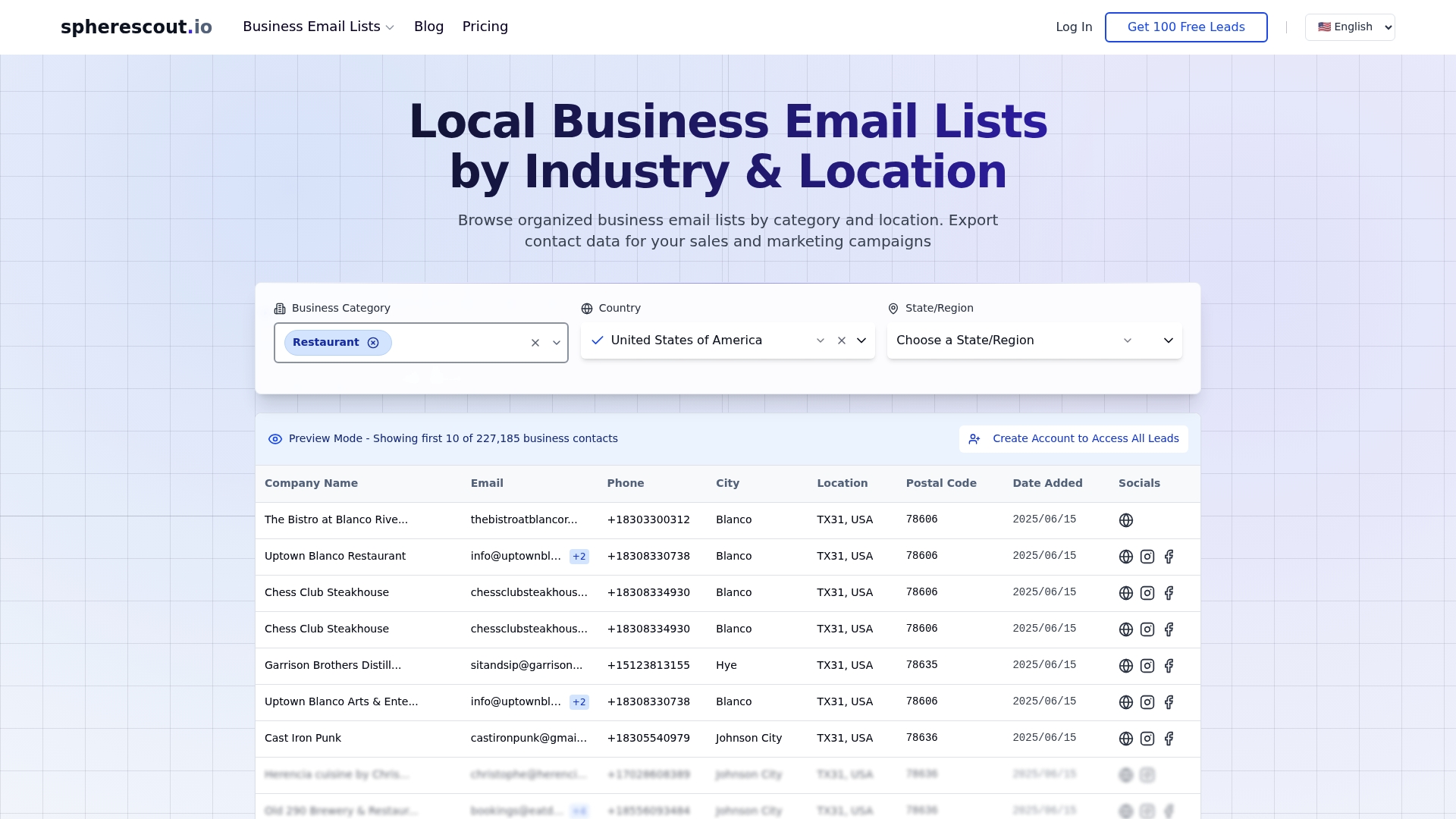
SphereScout gives your sales and marketing team direct access to a database of over 30 million business contacts, filterable by industry, city, postal code, and more. Every list you build is exportable as a clean CSV file, ready to drop straight into your CRM or email platform without the formatting headaches. You can browse targeted lead lists by business category or location, pull a free sample to verify data quality, and then export the full list the moment you are ready to launch. No manual data entry. No copy-paste chaos. Just structured, actionable contact data that fits your workflow from day one.
Frequently asked questions
How do I ensure my CSV export works in my CRM?
Always validate quoting, delimiters, and encoding before importing, and run a test batch of 50 to 100 records first. CSV best practices confirm that most import failures trace back to these exact formatting edge cases.
Can CSV exports handle large volumes of contact data?
Yes, CSV supports bulk import and updates at scale, making it well-suited for large outreach campaigns. HubSpot's documentation on bulk contact import confirms teams routinely use CSV files to add or update thousands of contacts in a single operation.
What fields should I include in a CSV export for outreach?
Stick to the essentials: first name, last name, email, phone, company name, and industry. Following the bulk contact import methodology means choosing only the fields your campaign actually needs, which keeps your data clean and your imports fast.
How can I avoid CSV export errors?
Plan for edge cases in your data — embedded commas, special characters, encoding mismatches — and validate your CSV against the target system before launching. CSV best practices recommend testing every export against the destination system's expectations to catch problems before they affect your campaign.