
Sales teams live in spreadsheets. Filters, sorting, colored columns and notes make Excel a natural workspace. The problem starts when the next tool expects CSV: the CRM, email platform, verifier, or automation workflow. Encoding, separators and shifted columns can break a campaign before the first email is sent.
1. Why a structured file is essential
A badly structured prospecting file slows down the entire sales process. Missing columns, inconsistent fields or no email column turn a two-minute CRM import into half an hour of cleanup.
- Company name
- City or region
- Professional email
- Phone number or website
- Source or segment
These five columns are enough to start. For collection methods, read how to create a prospecting list.

2. Essential columns in an Excel prospecting table
A complete file groups fields into four families.
Identification: company name and business category.
Location: address, city, postal code, region and country.
Contact: emails, phones and website.
Enrichment: social links, Google Maps URL, rating and source.
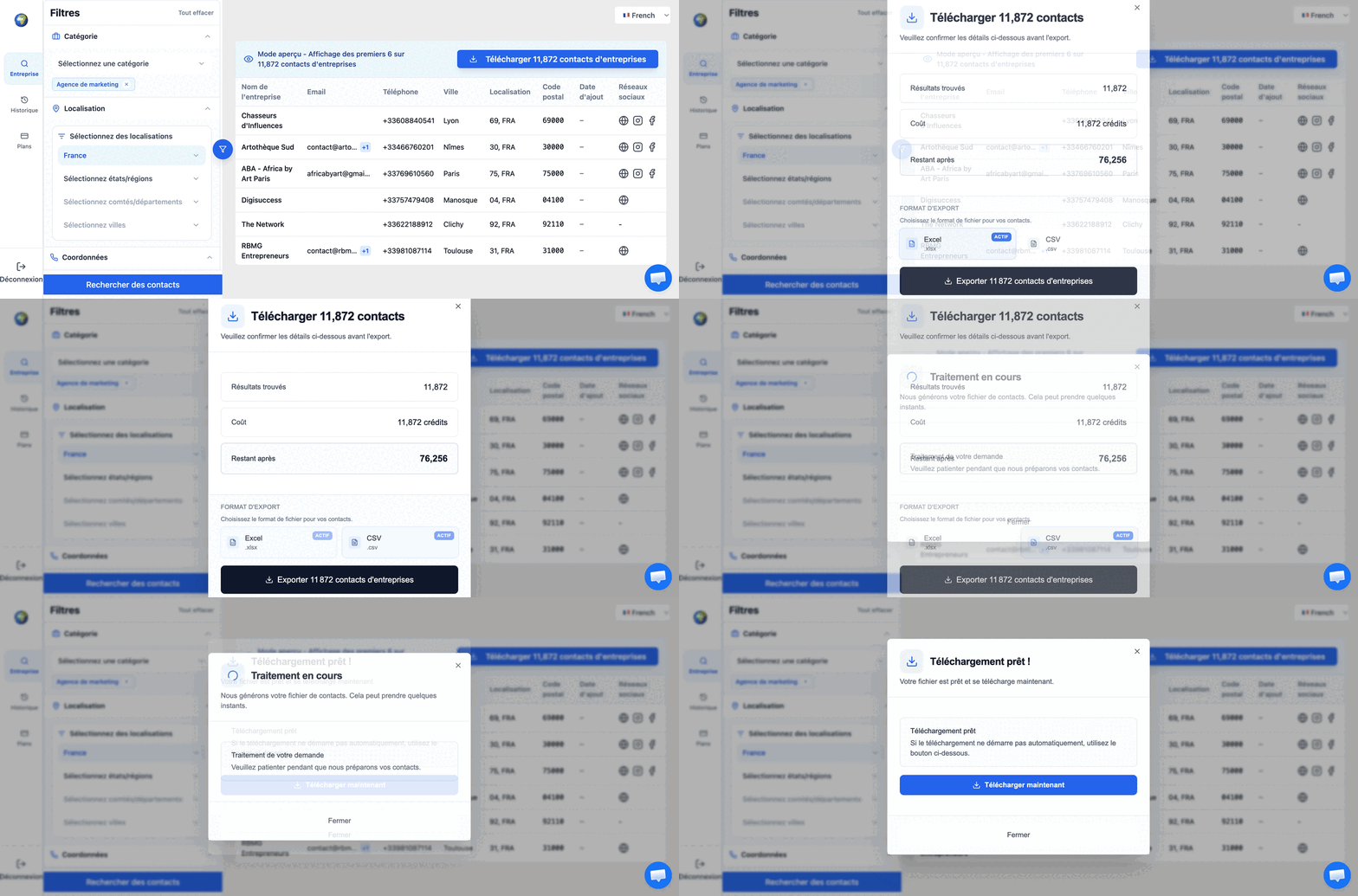
SphereScout exports standardized columns so you can inspect the data in Excel and import it cleanly elsewhere.
Name, Address, City, Postal code, Region, Email 1-5, Phone 1-5, Categories, Website, Facebook, Instagram, LinkedIn, Maps URL

3. Excel vs CSV: which format to choose
Excel is the sales working format. It is ideal for filtering, checking, sorting and adding notes before action.
CSV is the integration format. CRMs and email tools usually expect CSV because it maps cleanly into fields.
CSV pitfalls to avoid
- Wrong separator: comma vs semicolon.
- Encoding issues with accents or special characters.
- Re-saving CSV files in spreadsheet tools without checking UTF-8.
4. Concrete example: one prospect row
| Company | City | Phone | Website | Category | Source | |
|---|---|---|---|---|---|---|
| Martin Bakery | Lyon | contact@example.com | +33 1 XX XX XX XX | example.com | Bakery | SphereScout export |
Each column has a role: qualify visually, contact the company, personalize outreach, and track the source.
For a downloadable example, see the business directory CSV guide.
5. How to fill a prospecting file
Manual research
Useful for fewer than 50 very specific targets. Beyond that, manual entry becomes slower than the value produced.
Scraping
Useful for technical users with a clear source to extract. The cost is setup, cleaning and enrichment.
Ready-to-use data
Useful when the team needs verified emails, filters, and CSV or Excel export immediately.
6. Importing the file into a CRM or email tool
1. Save the file as UTF-8 CSV with the expected separator.
2. Upload it into the CRM or email platform import interface.
3. Map each column header to the correct CRM field.

Verify emails before sending
If the file comes from manual research or scraping, verify emails before sending. High bounce rates damage sender reputation.
Quality rules before importing
Before importing a file, freeze the column structure. Changing headers after the first import makes deduplication and reporting harder.
Use one row per company or contact, one type of value per column, and a consistent format for phone numbers and countries. Avoid putting several emails in one cell if the CRM expects separate fields.
Add a source column from the beginning. It looks minor, but it becomes essential when you later compare manual research, scraping, purchased files, and inbound contacts.
CRM mapping checklist
- Map company, city, website, email and phone first.
- Keep category or segment as a searchable field.
- Preserve the original source and export date.
- Run a duplicate check before launching outreach.
- Test with 20 rows before importing thousands.
This short test prevents the common failure mode: a technically valid CSV that creates unusable CRM data.